A team quiz game on data protection and
digital life, played in class.
Designed for students aged 12 to 16 (lower and upper secondary).
A game lasts 10 to 45 minutes.
The game is a conversation starter, not an end in itself.
🎯 In 30 seconds
- You start the game from your computer (the classroom screen).
- Students join in groups of 2 to 3 on a tablet by scanning a QR code.
- Each team answers questions, votes on real-life scenarios and fights "monsters of the web" (cookies, deepfake, cyberbullying, etc).
- At the end, you lead a discussion about the choices that were made.
🖥️ The two screens of the game
Leonora is always played on two screens in parallel: your main screen projected to the class (also called the arena), and the students' tablets. Each screen shows different things. This is what alternates collective moments (eyes lifted toward the arena) with team moments (huddled around the tablet).
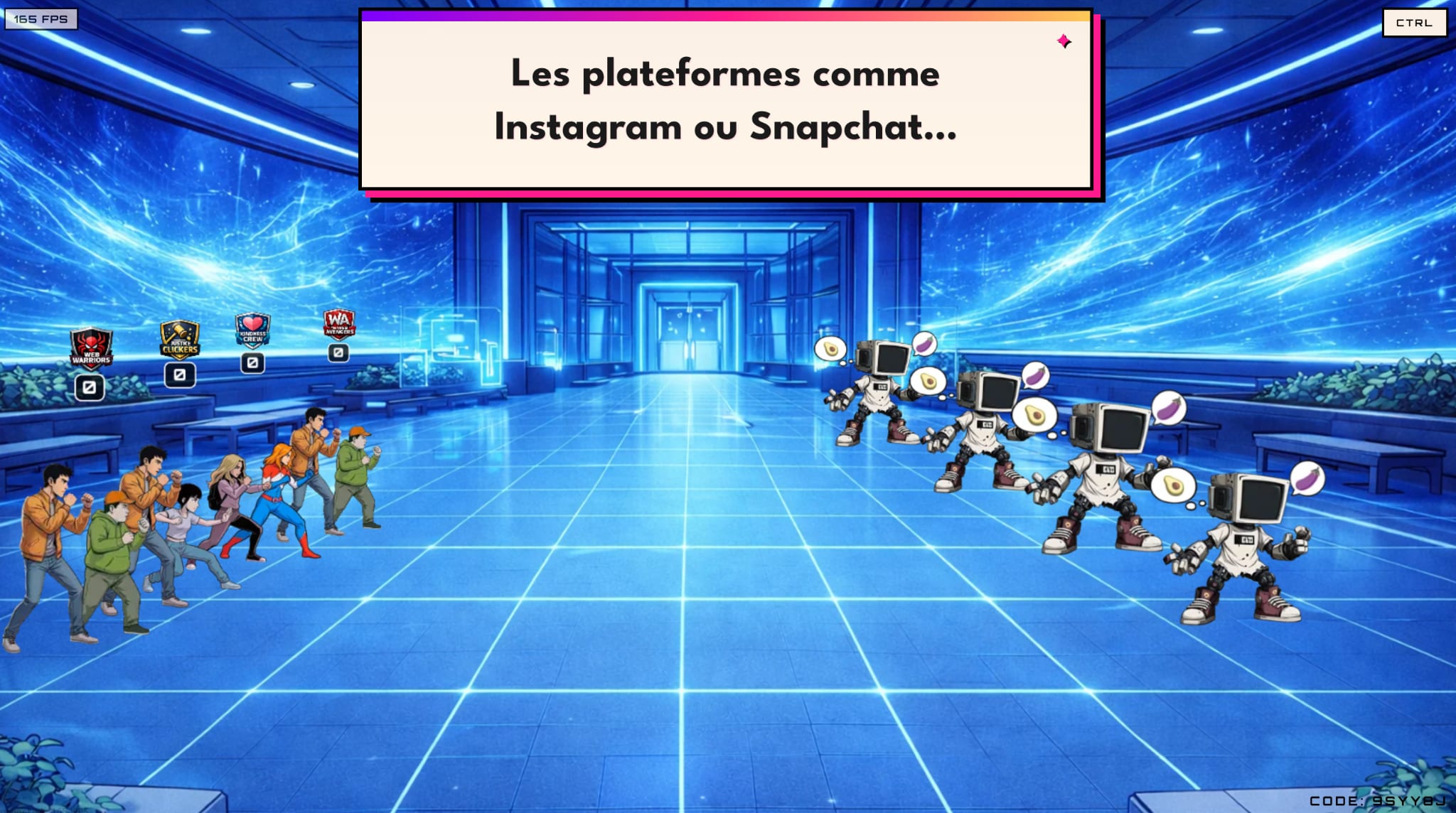
The Arena (your computer, projected to the class)
This is the big shared show, visible to the whole class.
| What happens here | When |
|---|---|
| The lobby: 6-digit code, giant QR code, list of teams as they join | At launch, before you click Start |
| Intro videos for each monster (Cookie, Deepfake, Doom Scroll, Sextortion...) | When a new monster appears |
| Animated combat: teams (little characters with their crest) attack the monster when they answer correctly | During quiz phases |
| Floating damage numbers (-30, -60...) above the monster, which flashes when hit | On every correct answer |
| Poll and debate results as a histogram with the percentage per team | At the end of each vote |
| End screen: leaderboard, statistics, transition to the next monster | At the end of the episode |
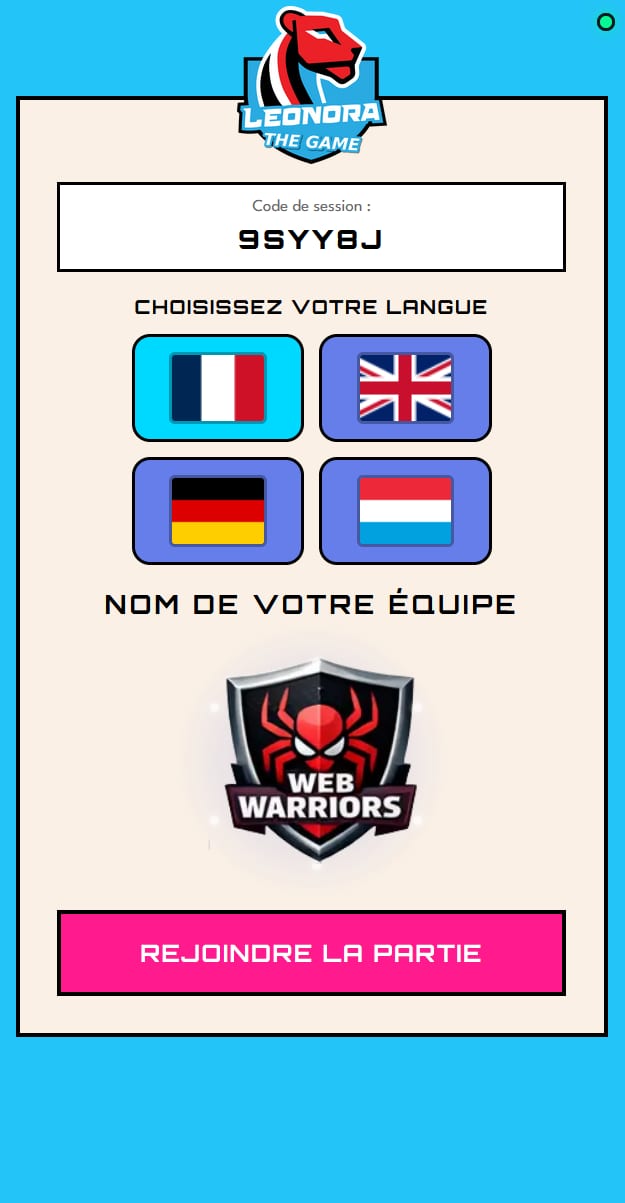
The player app (on each tablet)
The private interface for each team, never projected.
| What is displayed | When |
|---|---|
| Language choice (FR, EN, DE) then automatic team name assignment | When joining |
| Waiting room with their crest and assigned team name | Before the game starts |
| Questions (text + 3 tap-to-answer options) with a countdown timer | During the quizzes |
| Immediate feedback: 👍 correct answer (green) / 👎 wrong (red, with reveal) | After each answer |
| The score and the current streak (how many correct answers in a row) | Continuously (except in co-op mode) |
| Super powers: 3 cards to swipe (Tinder-style) to trigger a special move | Appears automatically |
| Mini-boss polls: 2 or 3 options to vote on in a few seconds | Every 3 to 4 questions |
| Boss debates: up to 12 badges (Accept, Decline, Talk, Report...) to choose from | Before each boss fight |
How it flows
The game regularly shifts attention between the two screens:
- Questions: students look at their tablet and answer questions or polls.
- Combat and animation: students look up to the arena to see the attacks.
- Debate and poll: the arena shows the question, the tablets show the choices. Students discuss as a team before tapping.
- Debate result: the arena shows the vote histogram, then triggers a visual assault on the monster.
📋 Before class
Equipment
| For | Equipment |
|---|---|
| You (the teacher) | 1 internet-connected computer, screen or projector, sound |
| The class | 1 tablet for every 2 to 3 students |
| Everyone | Internet (school Wi-Fi) |
Setting up the room
- Seat the students in groups of 2 to 3 around a tablet.
- Check that each tablet has internet access and that a browser (Chrome, Safari, Firefox...) is open.
- Check that your screen is visible to every team (video projection).
▶️ Starting the game
1. Open the game
On your computer, go to: https://game.leonora-gdpr.lu/
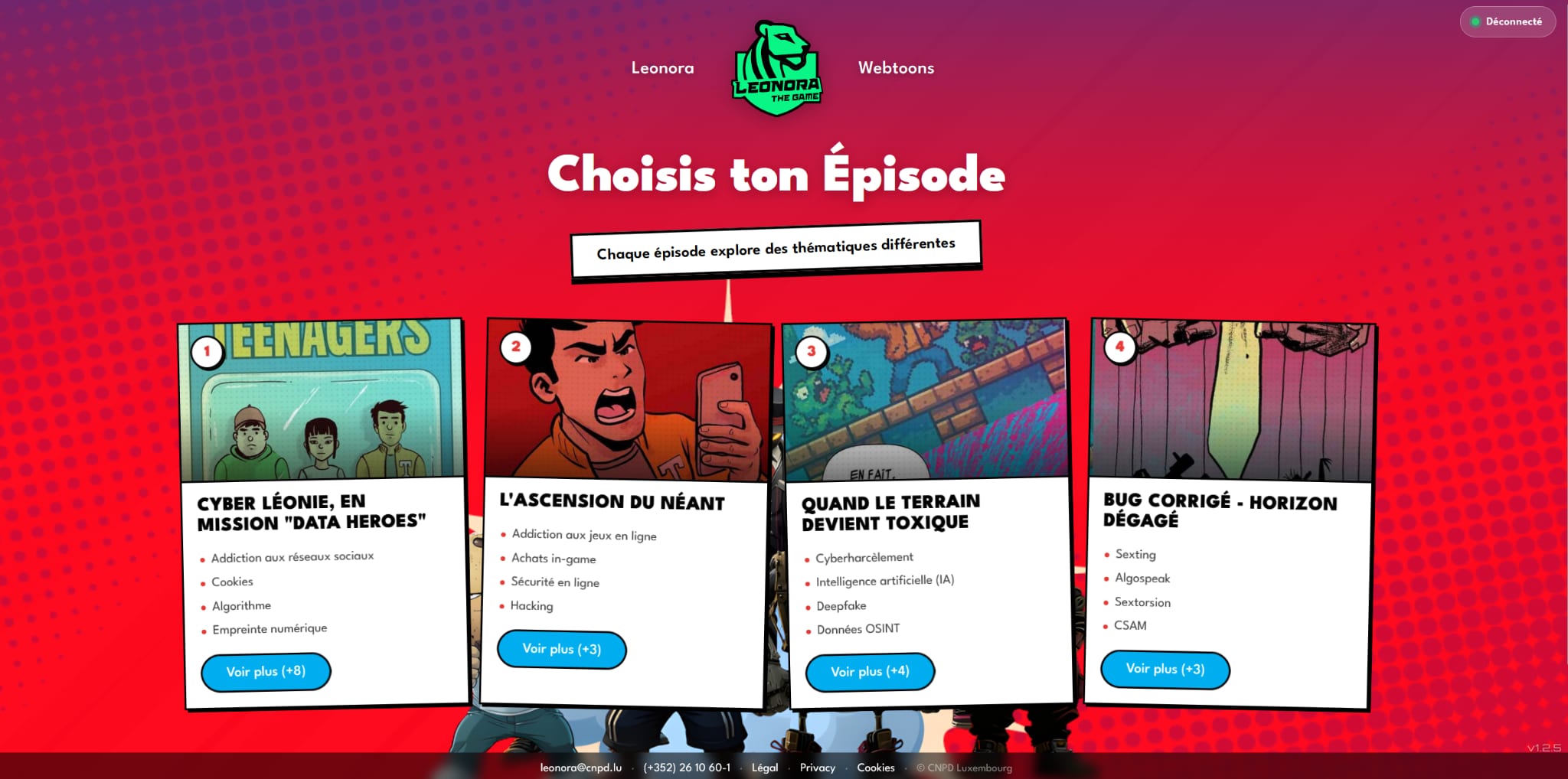
2. Choose an episode
3. Choose a difficulty profile
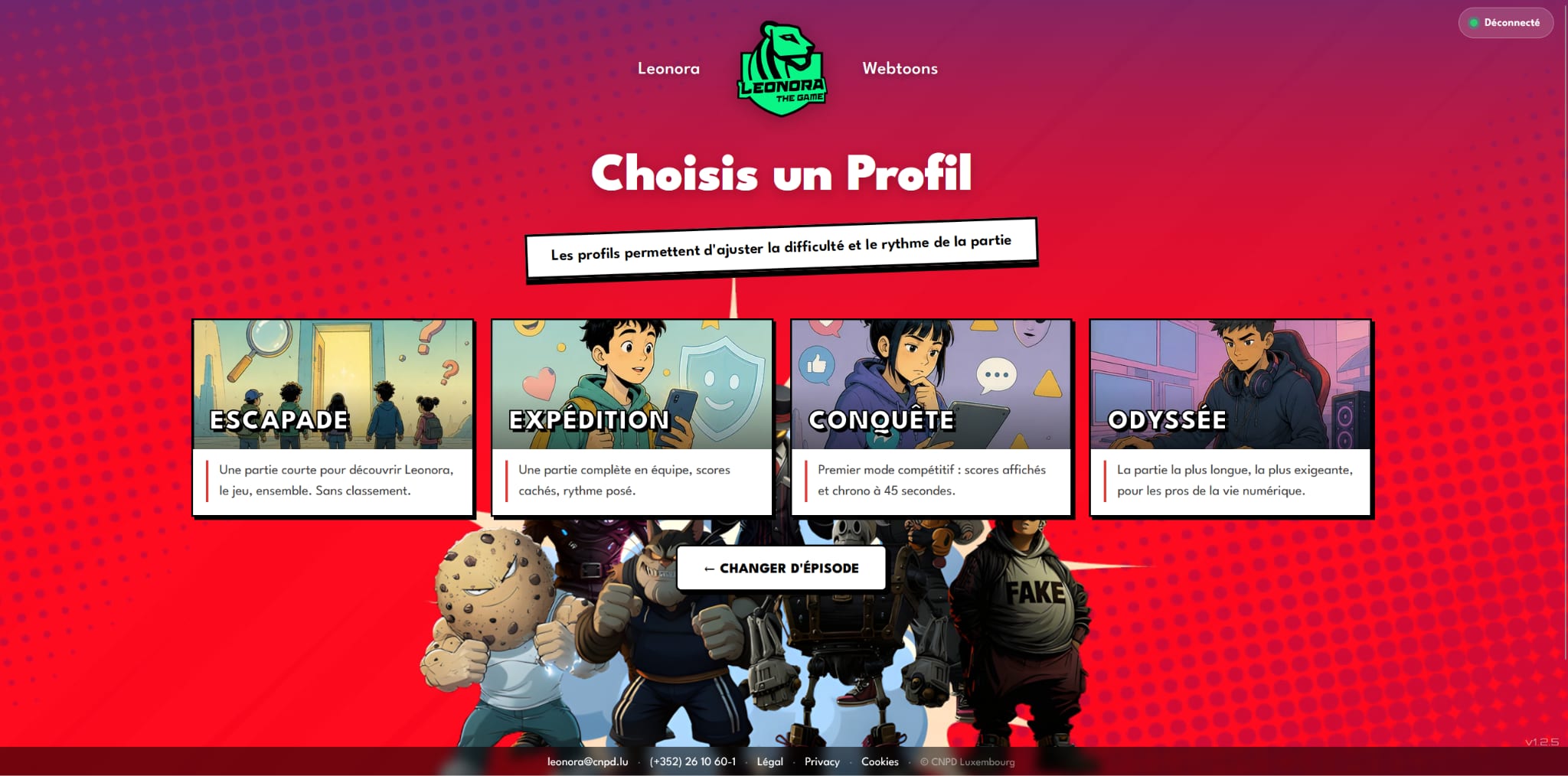
Profiles automatically adjust:
- Time to answer questions
- Debate duration
- Cooperative or competitive mode (scores visible or hidden)
If you are new to this, or if the class is on the younger side (12-13 years old), pick the simplest profile.
4. Choose the arena language
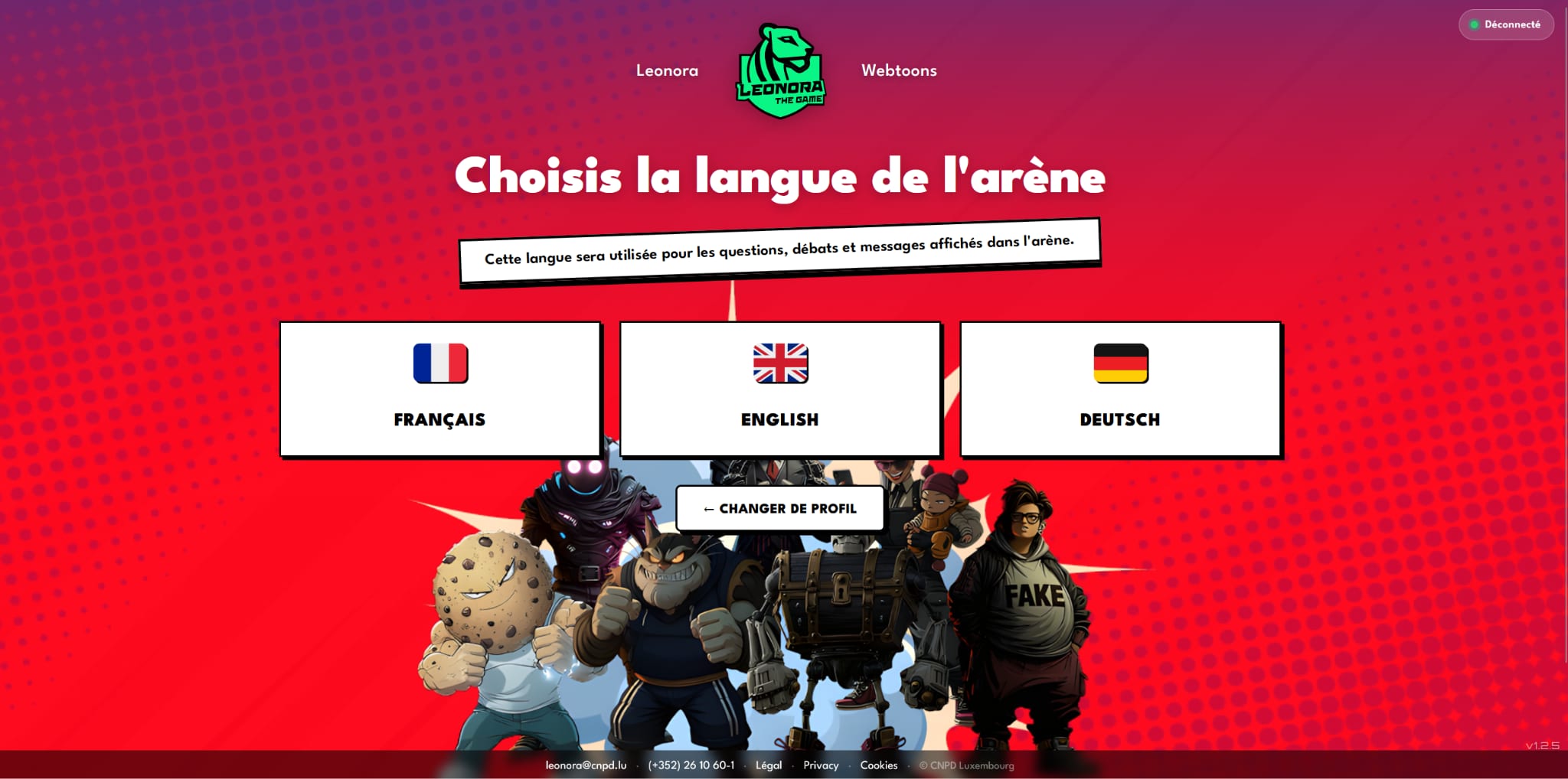
Three languages are currently available:
This is the language in which the questions and debates will appear on the arena (the projected screen). Each team's tablet interface will be in the language that team picks after the scan.
5. The code and QR code appear
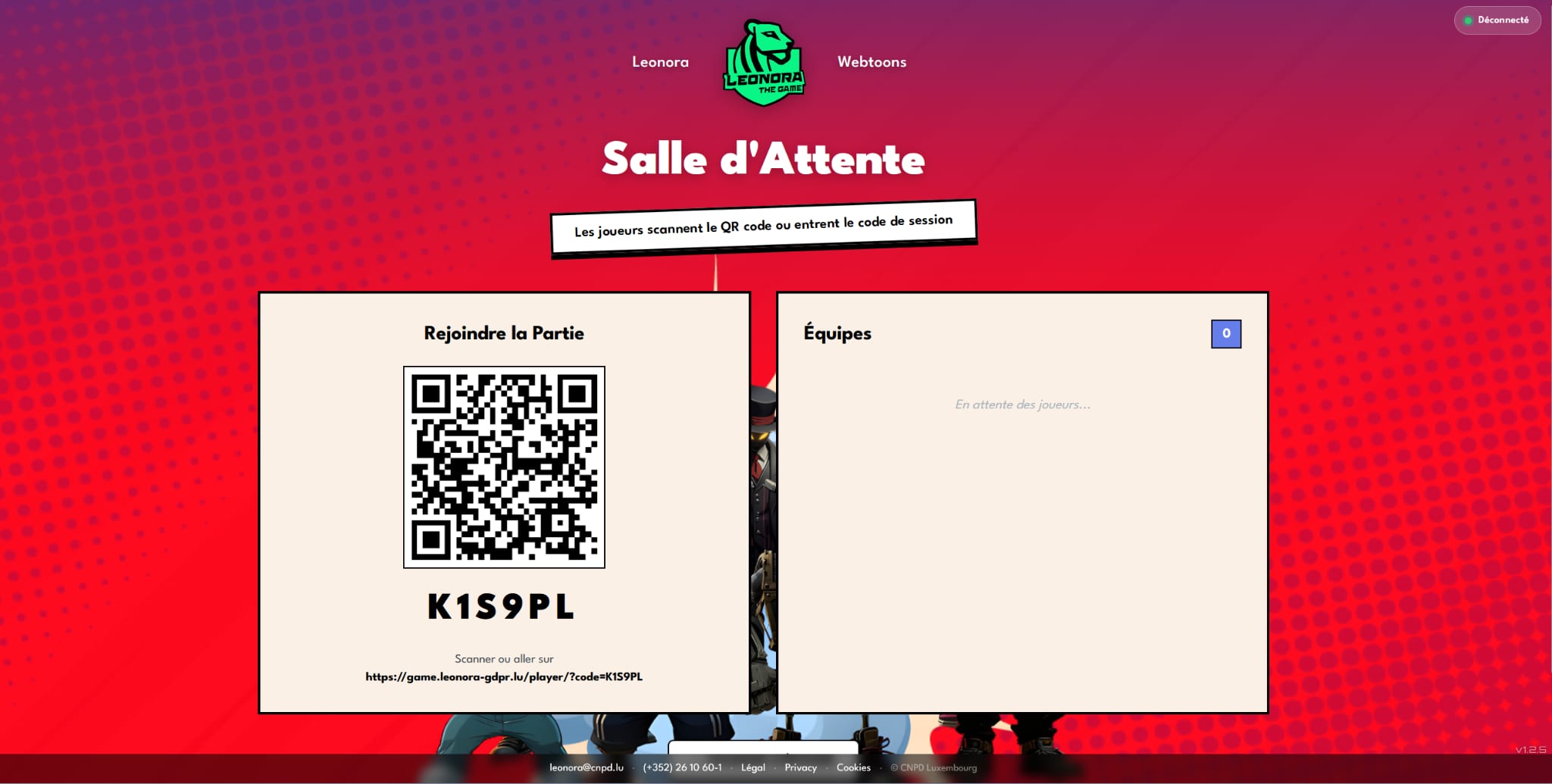
You land on the waiting screen with:
- A huge QR code to project to the class
- A 6-digit code (in case scanning does not work)
- The list of teams joining in real time
📲 Students join
On each tablet
Students open the camera app (or any QR scanner app), point at your screen, choose their language, see the name and crest assigned to their team, then tap "Join the game".
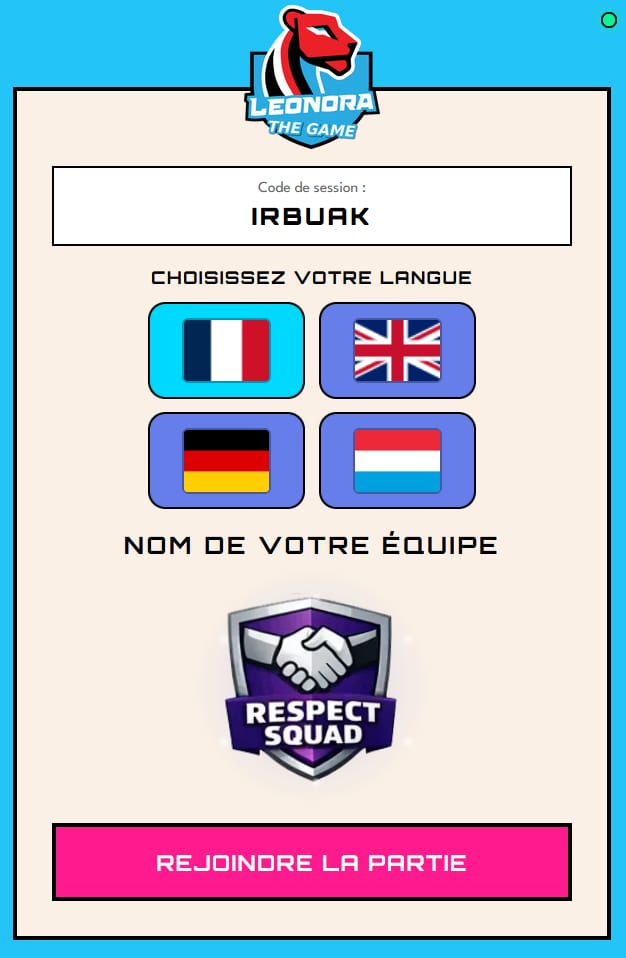
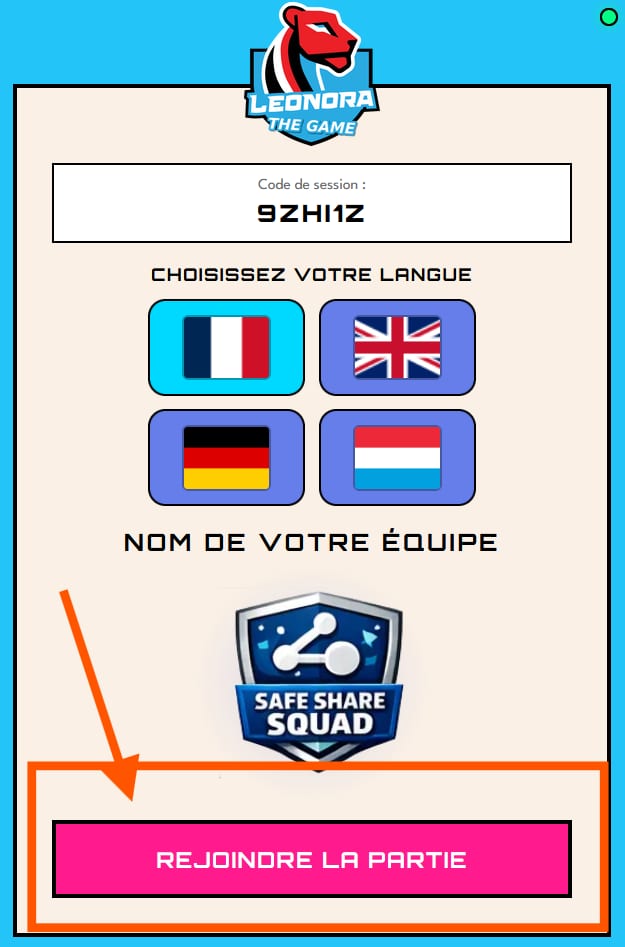
Once you click 🚀 Start the game, the lobby closes for good. Any group that has not clicked "Join" cannot get in. No second chance: you would have to start a fresh session from scratch.
Simple trick: check that the number shown in the blue square matches the number of teams in the room.
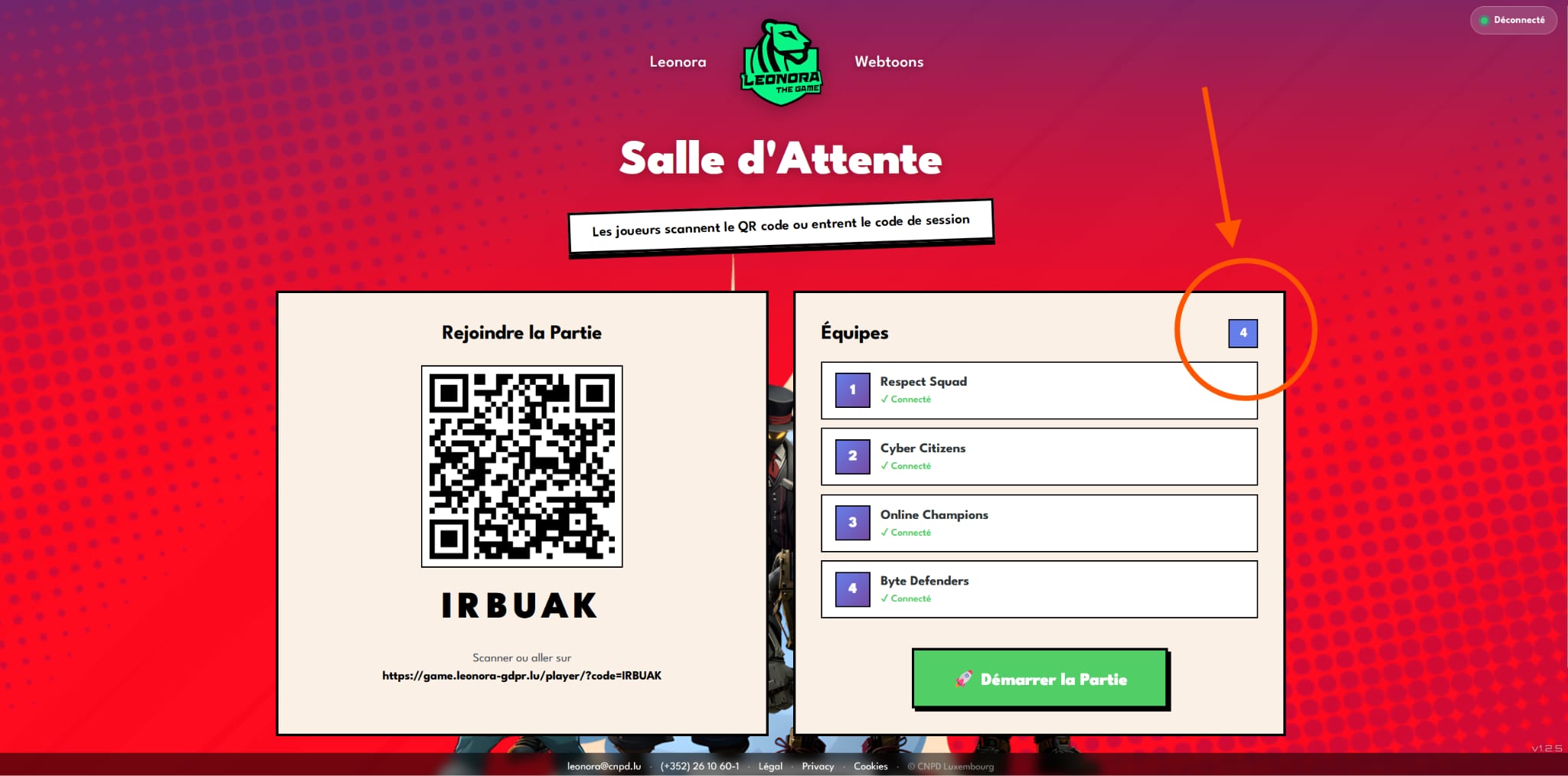
Before clicking Start, take 30 seconds to check
- Count your teams: the counter at the top of the lobby must match the number of groups in the room.
- Ask each group to raise their hand when they see their team name (e.g. The Web Avengers) shown on their tablet.
- Ask out loud: "Raise your hand if you see your team name on your tablet." If a hand is missing, go check that group before starting.
Common issues on the student side
- They scanned the QR but did not tap the link that popped up.
- They opened the page but did not choose a language.
- They chose the language but did not tap "Join the game".
- The tablet went to sleep during connection.
As long as every expected team is not listed on the screen, do not start. Once the count is right, click 🚀 Start the game.
🔄 If a team disconnects during the game
What to do in each case
| Situation | What to do |
|---|---|
| A tablet goes to sleep for a few seconds | Tap the screen. The page reopens, the game picks up automatically ("Welcome back!" message). |
| The Wi-Fi drops for a few seconds | Wait 2 to 3 seconds. The game reconnects on its own as soon as the network comes back. |
| The student closed the tab or refreshed (F5) by mistake | They reopen the URL https://game.leonora-gdpr.lu/player/?code=XXXXXX. The team is recovered automatically. |
| The student fully closed the browser | Same: they reopen the browser, type in the same URL with the code, the team is recovered. |
| The tablet restarted | If the local session is still kept (under 10 min), reopening the link is enough. Otherwise, scan the QR again from your screen. |
| More than 10 minutes have gone by | The spot is released and the team name may be reassigned. The team is lost for this game. |
Good practices
- Keep the 6-digit code visible on your screen throughout the game (you can also write it on the board as a safety net).
🔄 The "Force sync" button
If one or more tablets seem to be stuck on an old question while the rest of the class has moved on (a phone that went to sleep, a Wi-Fi hiccup, a silent reconnect that failed), you can put them back in sync with one click from the arena using the 🔄 Force sync button (top right of the main screen).
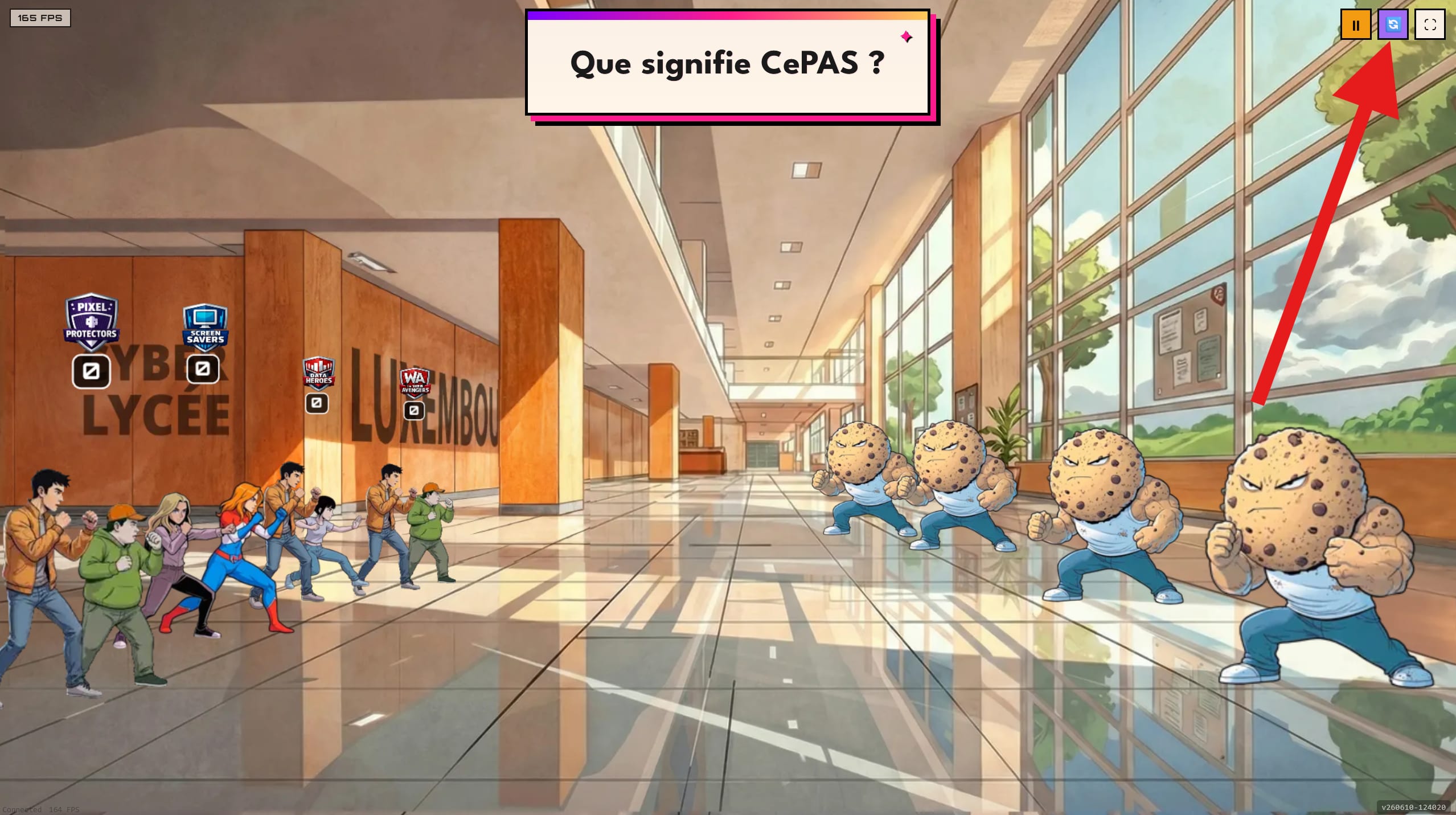
The button asks for confirmation and pushes the current question back to every team in a quiz phase (teams currently in a debate are not disturbed). Use sparingly: answers not yet confirmed will be lost.
🎮 During the game
The pacing
A game alternates 3 phases:
- Quiz questions (on the tablets): students answer as a team, as fast as they can.
- Poll or express debate (mini-boss): the whole class votes on a real-life scenario in a few seconds.
- Combat in the arena (on your screen): teams attack the monster based on their correct answers.
Every 3 to 4 questions, a mini-boss appears with a poll. Once it is defeated, the final boss takes the stage with a longer debate, ideal for classroom discussion.
What you do during the game
- You watch the arena on your screen (the attacks, the damage, the team names).
-
You can move on to the next step at the class's pace whenever
the "Continue" button appears.
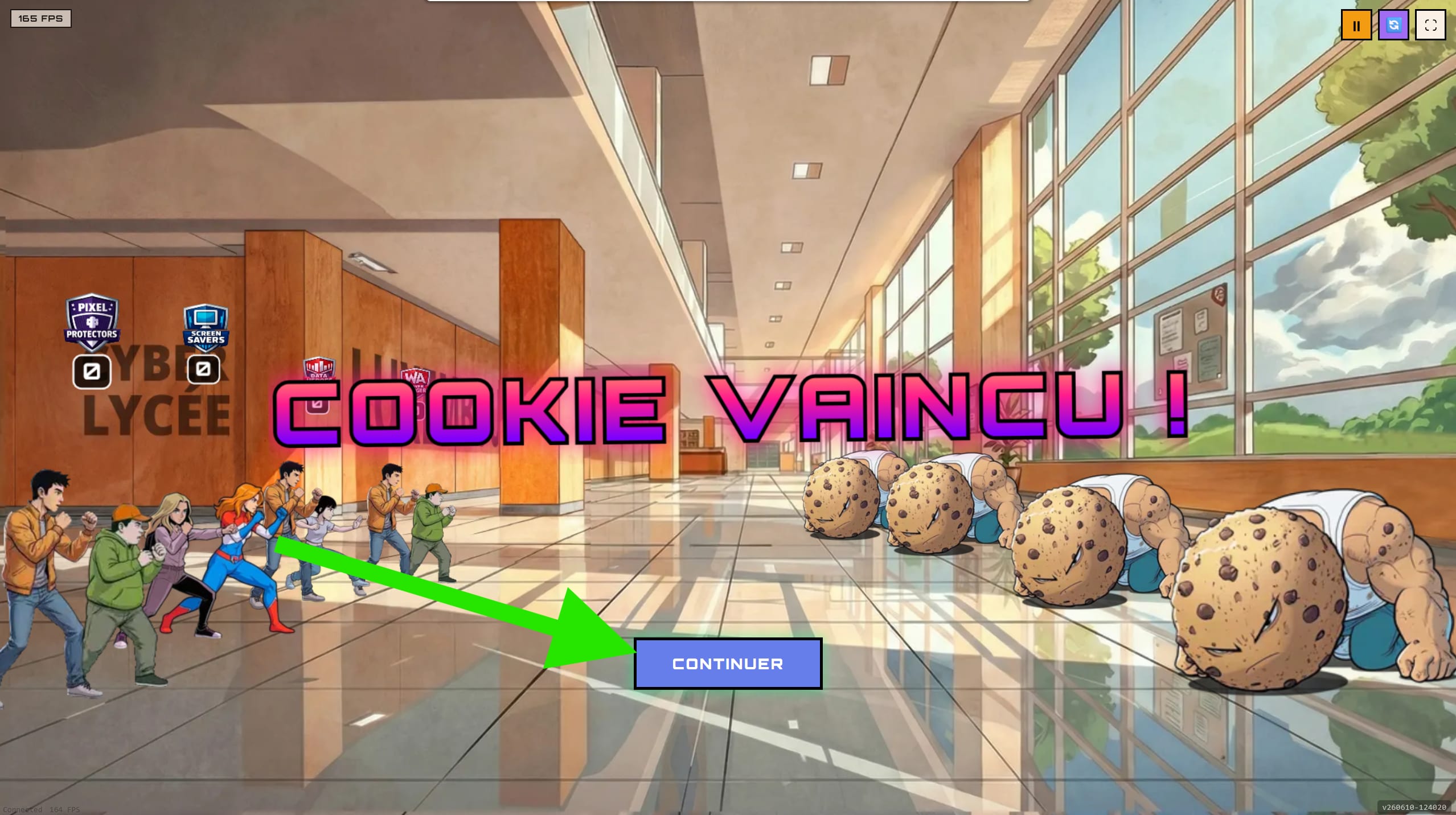
"Continue" button on the arena - You can pause ⏸️ if you need to explain a word or settle the class.
- You can run the debates: during boss debates, this is when to invite discussion between teams before the vote.
What the students see
- The score (except in cooperative mode)
- Their correct-answer streak (streak)
- The current questions
- The polls and debates
- The super powers unlocked after several correct answers in a row (cards to swipe)
🏁 End of the game
When every boss has been defeated:
- End screen on the arena (leaderboard, statistics)
- You can move on to the next episode or head back to the home screen
Discuss with the class
- "Why did you vote that way?"
- "What changes depending on the context?"
- "Who has ever been through something like this?"
🆘 Problems / troubleshooting
| Problem | Quick fix |
|---|---|
| A tablet cannot join | Check the tablet's Wi-Fi, retype the 6-digit code. |
| Student disconnected during the game | The game keeps their spot for 10 min. They reopen the link and type the code again (see the dedicated section above). |
| Intro video stuttering | First time: let it load for 10s. Otherwise, mute the sound and skip it. |
| You refresh by mistake (F5) | An alert appears BEFOREHAND to warn you. If it is too late, reload: the session stays valid on the student side for 10 min. |
🔒 Privacy
- No personal data is collected from students: no account, no name to enter, no email.
- Team names are drawn at random from a preset list.
- No information leaves the game server, which is hosted in Luxembourg.